AlaricForge · Store Task Manager
User manual
Step-by-step instructions for planning, reviewing and running native Shopify catalog tasks.
Chapter 1
Start here
Choose your workflow and understand when Shopify changes.
Store Task Manager helps you plan changes to native Shopify variant prices, schedule approved sales, display optional promotions and create missing native variant combinations. Begin with a small test selection before planning a large campaign.
Choose the right starting point
- Change existing variant prices: choose Create price task on the dashboard.
- Add native combinations that do not exist: choose Find missing variants.
- Plan missing-variant creation for several products: start from the product list and use Bulk plans.
- Understand a finished or interrupted action: open its saved record from the dashboard or Archive / history.
Your first price task
- Create a draft with a descriptive name and a small percentage adjustment.
- Open the preview and narrow it to test products with filters.
- Select one or two variants and prepare a saved review.
- Read the exact original and proposed prices. Stop here if you only want to explore.
- To test a real change, explicitly approve Apply, wait for verified results, then restore eligible original prices and verify the restoration.
Screenshots use a test catalog. Product names, record counts, dates and currency values are examples, not values your store must match. You do not need to reproduce the example counts.
Chapter 2
What the app changes
Native Shopify fields, permissions and important boundaries.
Native variant prices
A price task changes the saved price field on selected native Shopify variants. A product with several native variants can therefore have several separately selected prices. Compare-at prices and other product fields are not written by a price task.
Prices calculated by external option apps, extra charges added by another app, market-specific price lists and checkout discounts are outside the price preview. An app that stores its values as ordinary native Shopify variants may expose those saved prices, but this does not mean its custom calculation logic is understood.
Gift cards and bundle parents are excluded from price execution. Products in active, draft and archived statuses can appear unless your rules narrow the status. Check the status rather than assuming only storefront products are included.
Native variant creation
The missing-variant tool inspects combinations formed by a product's native options. It does not inspect options stored only in an external app. Missing and out of stock mean different things: an existing variant is not missing because it has zero stock.
Shopify does not offer an atomic check-and-write lock for these price operations. Avoid manual catalog edits or another app changing the same fields while a task is executing.
Chapter 3
Use the task dashboard
Find drafts, reviews, jobs, schedules and results.
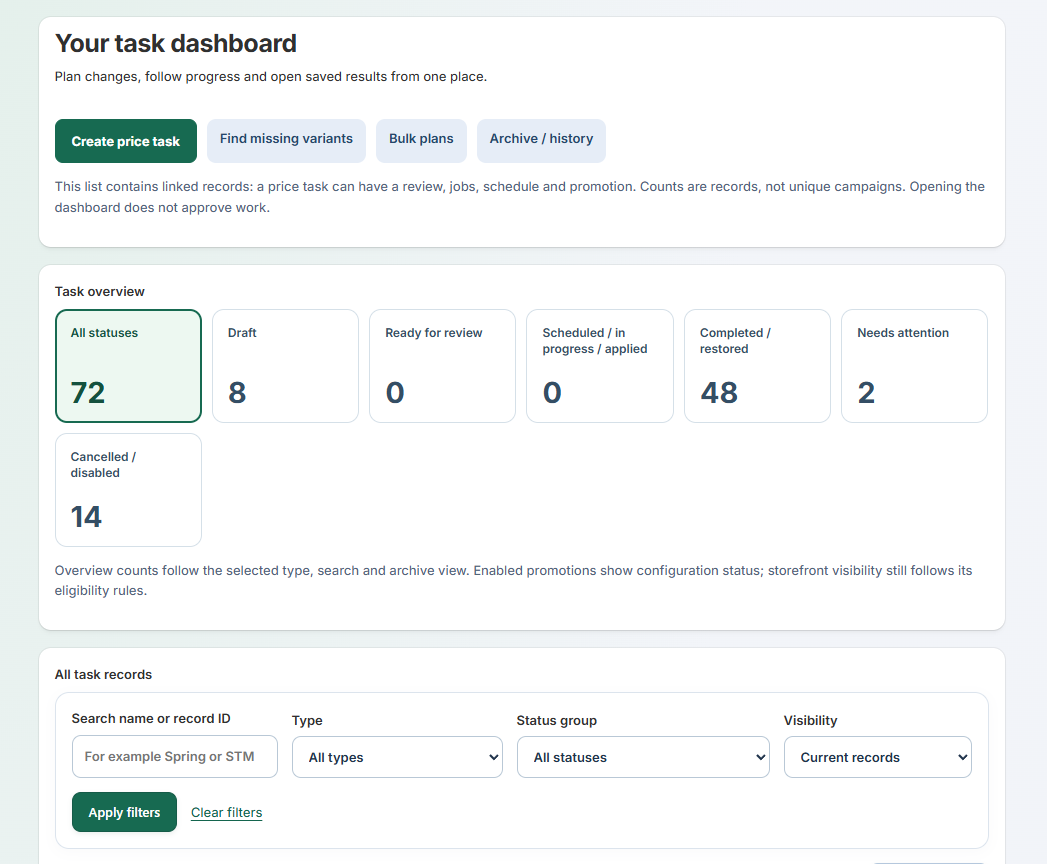
The dashboard is your starting point. Its top buttons open Create price task, Find missing variants, Bulk plans and Archive / history. Help is available in the app navigation; Full user manual opens this guide.
Understand the counts
Overview cards group records by status. A price campaign can have a draft, saved review, background jobs, schedule and promotion. Counts therefore describe linked records, not unique campaigns or products.
Select a status card to narrow the list. Use Search name or record ID, Type, Status group and Visibility for more precise results, then choose Apply filters. Clear filters resets the dashboard view.
Open the right record
- Find the task by name or ID and read its type and status.
- Use Edit for an editable draft, or Open for a saved review, job or result.
- Follow any secondary result links when a job has produced a separate saved record.
- Use the pagination controls to reach records beyond the first page.
Progress refreshes while this shop has queued work or active schedules. A quiet dashboard is not proof that an older execution was restored: open the saved result to check its actual status.
Chapter 4
Create or edit a price draft
Describe a percentage change without changing prices.
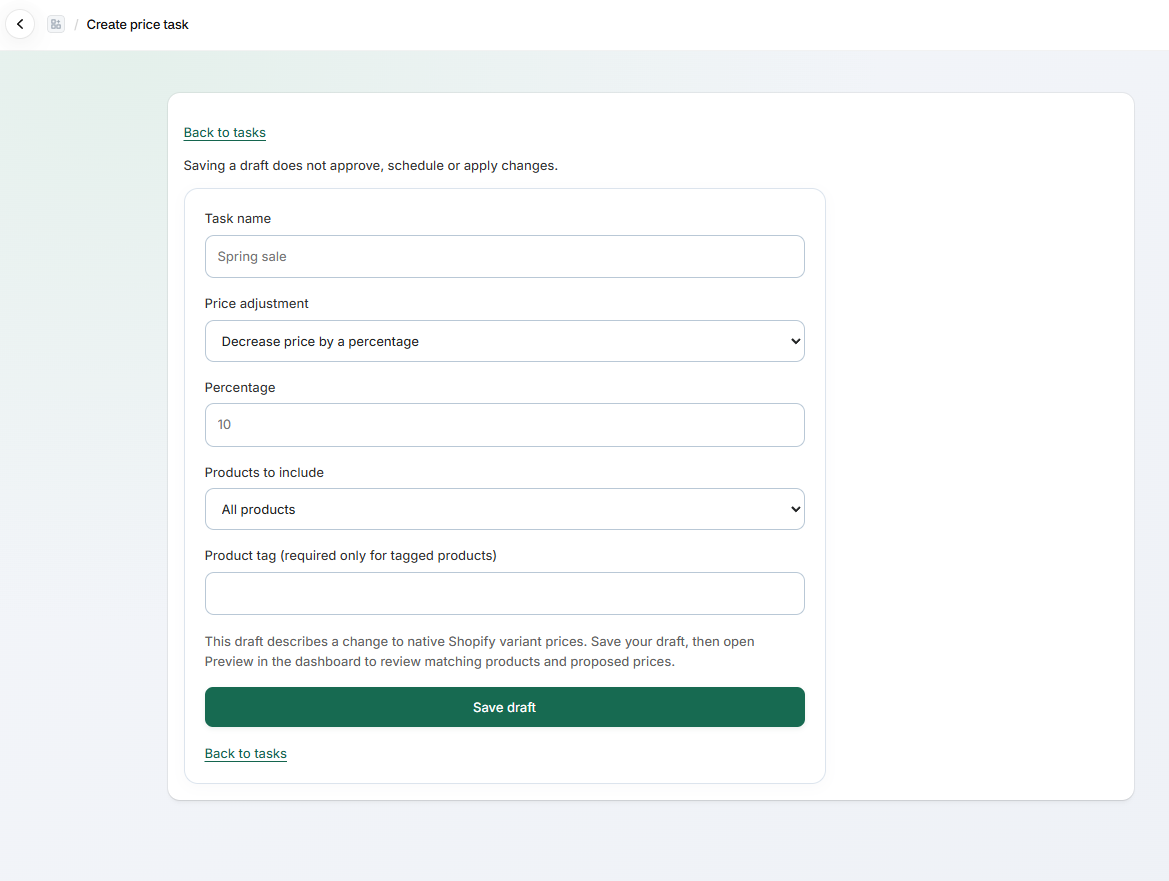
- Choose Create price task.
- Enter a task name you will recognize later, such as Spring sale — canvas.
- Choose Decrease price by a percentage or the corresponding increase option.
- Enter the percentage. For example, 10 means ten percent, not a fixed currency amount.
- Choose All products or a tagged-products target. Enter the product tag when that target requires one.
- Choose Save draft, then open Preview from the dashboard.
A tag entered as the draft target remains mandatory. Later filters narrow that target; a preset does not broaden a tagged draft to every product.
An editable draft opens on a dedicated page. Saving changes updates its revision. An already prepared review is a separate fixed selection; do not expect editing a new draft to rewrite an older saved review.
Percentage calculation
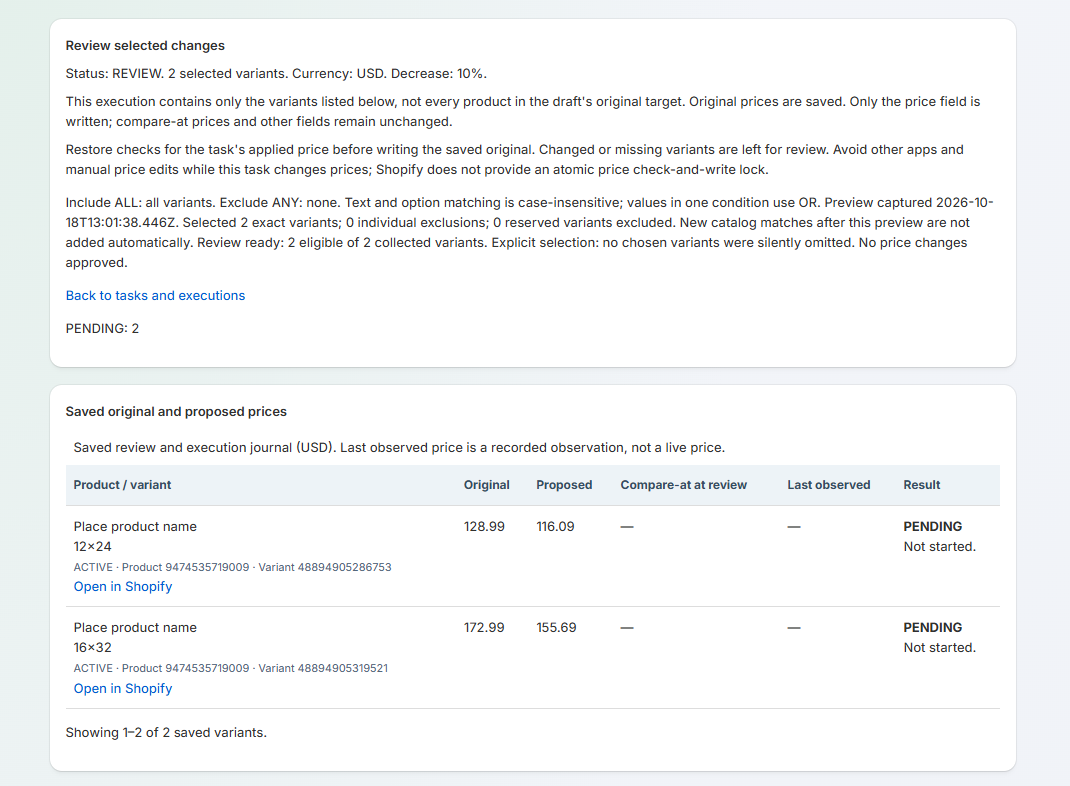
The preview uses the store currency and rounds proposed prices half up to its standard decimal precision. For USD, 128.99 decreased by 10% becomes 116.09. Compare-at prices remain unchanged. Zero or unchanged proposed prices can be ineligible.
Chapter 5
Build product and variant filters
Combine conditions without changing matching semantics.
A read-only catalog scan begins when you open a draft preview. Wait until the preview is ready before using its final counts. Partial scan results cannot be selected for execution.
Add conditions
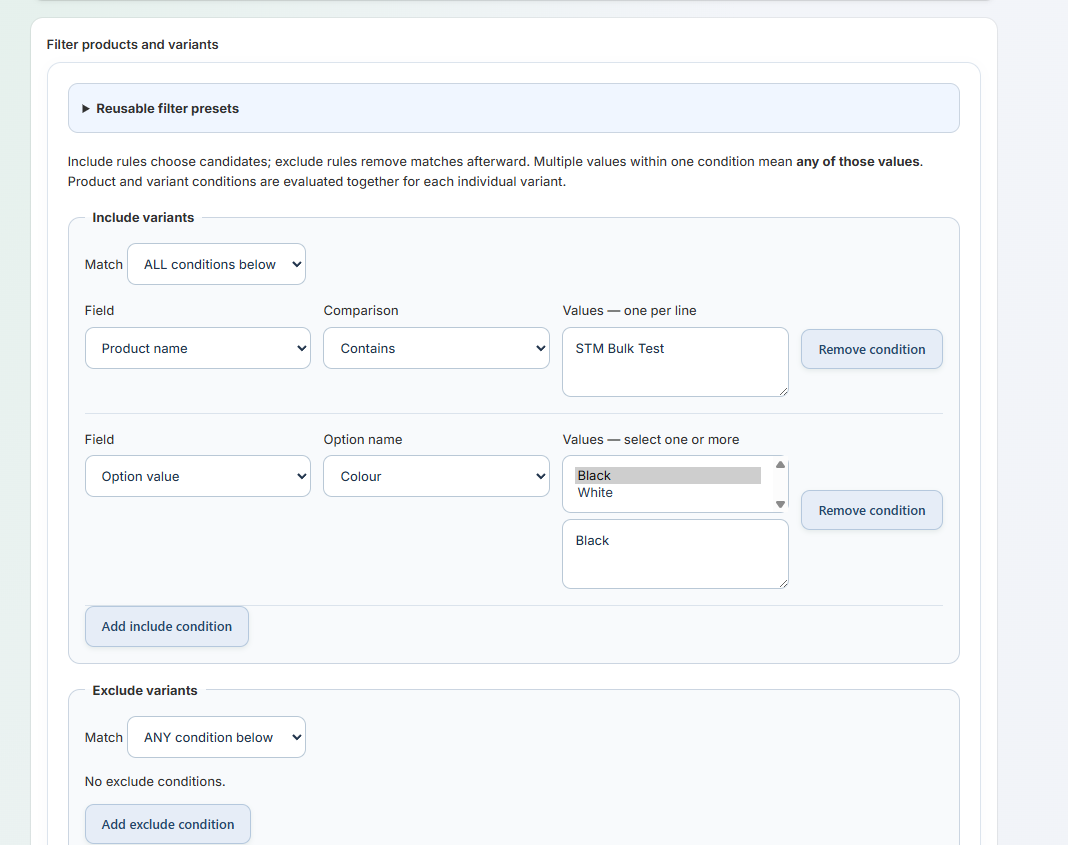
- Under Include variants, choose Add include condition.
- Select the field and comparison. For example, Product name, Contains, STM Bulk Test.
- To narrow native options, add an Option value condition and choose its Option name from the dropdown, such as Colour.
- Select one or more values, such as Black. Additional exact values can be entered in the value box when needed.
- Choose Build / refresh filtered preview and wait for the finished results.
The option-name dropdown uses names read from the scanned draft target. Use the actual store spelling, for example Colour versus Color. A saved name not present in the scan remains labelled rather than being silently changed to another option.
ALL, ANY and values
- Include ALL: the individual variant must satisfy every include condition.
- Include ANY: the individual variant must satisfy at least one include condition.
- Multiple values in one condition use OR: Black and White in one Colour condition mean either colour.
- Exclude conditions remove candidates after inclusion. Their own ALL or ANY setting controls how that exclusion group combines.
- An empty include group means the draft target. An empty exclude group removes nothing.
Product and variant conditions are evaluated for each individual native variant. Colour Black AND Size Large must be true on the same variant; a Small Black variant and a Large White sibling do not satisfy that combination together.
Field behavior
- Product name, variant title and SKU support Contains or Exactly matches. Matching ignores case.
- Tags and native option values use exact, case-insensitive values; a substring is not enough.
- Collections use selected Shopify collections. Product status uses active, draft or archived.
- Current price range uses the store currency. Bounds are inclusive; leave one side empty for an open-ended range.
Changing a rule clears the previous selection. Rebuild the preview before choosing variants again. A narrow filter can reduce work; a broad or SKU-only filter can still take time because the app must inspect native variants.
Chapter 6
Save and load filter presets
Reuse rules while refreshing the actual catalog matches.
Reusable filter presets is a collapsed bar near the top of Filter products and variants. Click the bar to expand it. Presets are useful for recurring selections such as Canvas — Black frames or Winter collection.
Save a new preset
- Set your filter rules and build a preview to confirm the matches.
- Expand Reusable filter presets.
- Enter a descriptive Preset name.
- Choose Save as new preset.
Reuse a preset
- Open a draft preview and expand Reusable filter presets.
- Choose the preset from Saved preset.
- Check the loaded rules and choose Build / refresh filtered preview.
- Wait for fresh results, then make your selection.
Loading a preset requires a fresh scan even when its rules appear unchanged. Select Update selected preset only when you intend to overwrite that saved set of rules. Choose Save as new preset to keep the original and add a variation. Delete selected preset removes the preset, not completed tasks.
A saved preset named STM Bulk Test — Black is an example name. In another store, replace the sample product-name condition with your own catalog text.
Chapter 7
Select exact variants across pages
Control the final scope and individual exceptions.
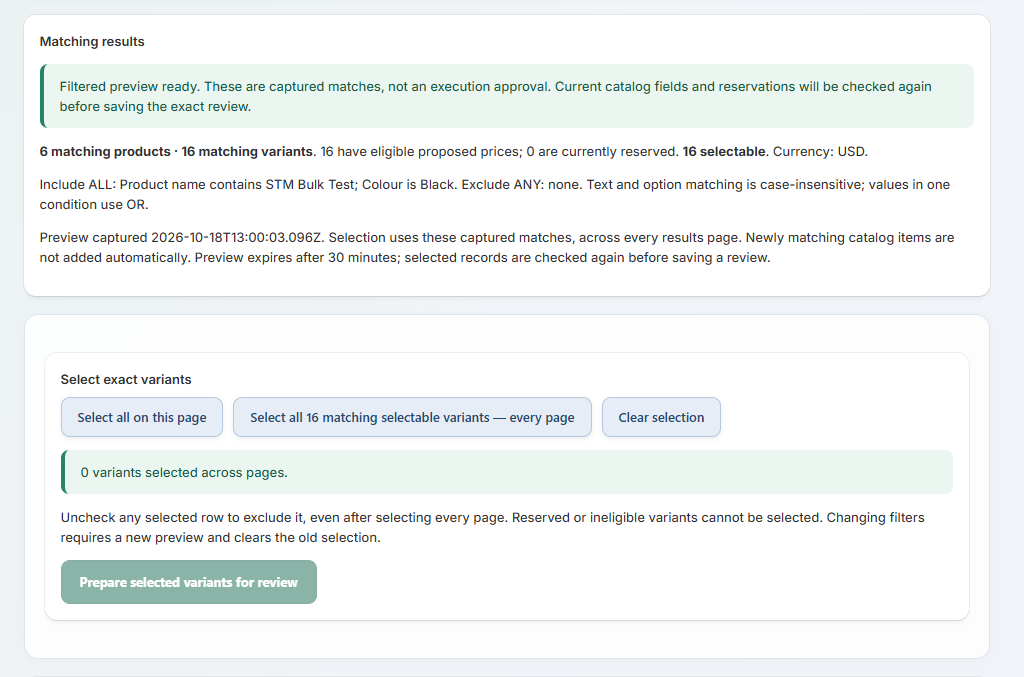
Matching results show matching products, matching variants, eligible proposed prices, current reservations and selectable variants. Read the rule summary and currency above the rows. Products and variants are different counts: one product can contribute several variants.
Selection controls
- Select all on this page selects available rows on the current page only.
- Select all matching selectable variants — every page selects the captured matches across all results pages.
- Clear selection clears your current choices.
- Uncheck a selected row to exclude it, including after selecting every page.
The selection summary shows the cross-page total and individual exclusions. For example, 32 selectable matches minus one unchecked variant gives 31 selected variants. Moving to another page should keep that selection.
Reserved and ineligible rows
A variant reserved by another execution is disabled and remains unchecked. Follow its holding-task link to inspect that execution. Cancelling a schedule alone does not necessarily release its saved review's reservation. Cancel an unstarted review, restore an applied execution or close an eligible execution only when that is your intended outcome.
Ineligible rows explain why they cannot be selected. Do not treat a disabled checkbox as a missing variant.
Prepare the review
- Confirm the selected count and any exclusions.
- Choose Prepare selected variants for review.
- Follow the background preparation result to the saved review.
If the catalog or reservation state changes, preparation can stop and ask for a fresh preview. Explicitly selected conflicts are not silently replaced with other variants. With all-matches selection, current reservations are skipped again before saving and the exact resulting scope is recorded.
Previews expire after 30 minutes. They represent captured matches; new matches appearing later are not added automatically. Saved selections can be remembered while navigating the same preview in your browser session, but a new preview or changed rules need a fresh selection.
Chapter 8
Read and approve a saved price review
Understand original, proposed, observed and pending values.
A prepared review has status REVIEW and an exact saved selection. The original draft may have targeted all products, but the execution contains only the saved variants listed in this review. Read its rule and exclusion summary before approving.
Check the journal
- Original is the catalog price saved for possible restoration.
- Proposed is the price this execution intends to apply.
- Compare-at at review is recorded context; this field is not changed.
- Last observed is a recorded observation, not a continuously updated live price.
- PENDING on an item means it has not started. It is not proof that a schedule has been approved.
Apply now
- Review every selected variant, its proposed price and the currency.
- In Apply or cancel this review, tick the explicit application confirmation.
- Choose Apply prices to the displayed number of variants.
- Wait for the job result and verify the execution status.
An active schedule prevents manual application until that automation is cancelled. Approving Apply starts background work: leaving or refreshing the page does not cancel it. Application is progressive, not an instantaneous all-store switch.
Catalog details are checked again before execution. A changed baseline can stop the operation without writing. Avoid retrying a failed job until you understand whether any writes were already verified.
To abandon an unstarted review, choose Cancel review — change no prices. To repeat a finished campaign, use Duplicate as draft, then build a new preview and approve a fresh review.
Chapter 9
Restore prices and resolve conflicts
Recover only where current prices still belong to the execution.
After application, open the saved execution and read its item results. APPLIED means the saved proposed prices were verified. PARTIAL means you must inspect the rows to see which prices changed.
Restore eligible original prices
- Open the execution that applied the prices.
- If a write outcome is unverified, use Recheck results — read only first.
- Read the restoration confirmation and tick it.
- Choose Restore eligible original prices.
- Wait for the job and inspect the execution and individual row statuses.
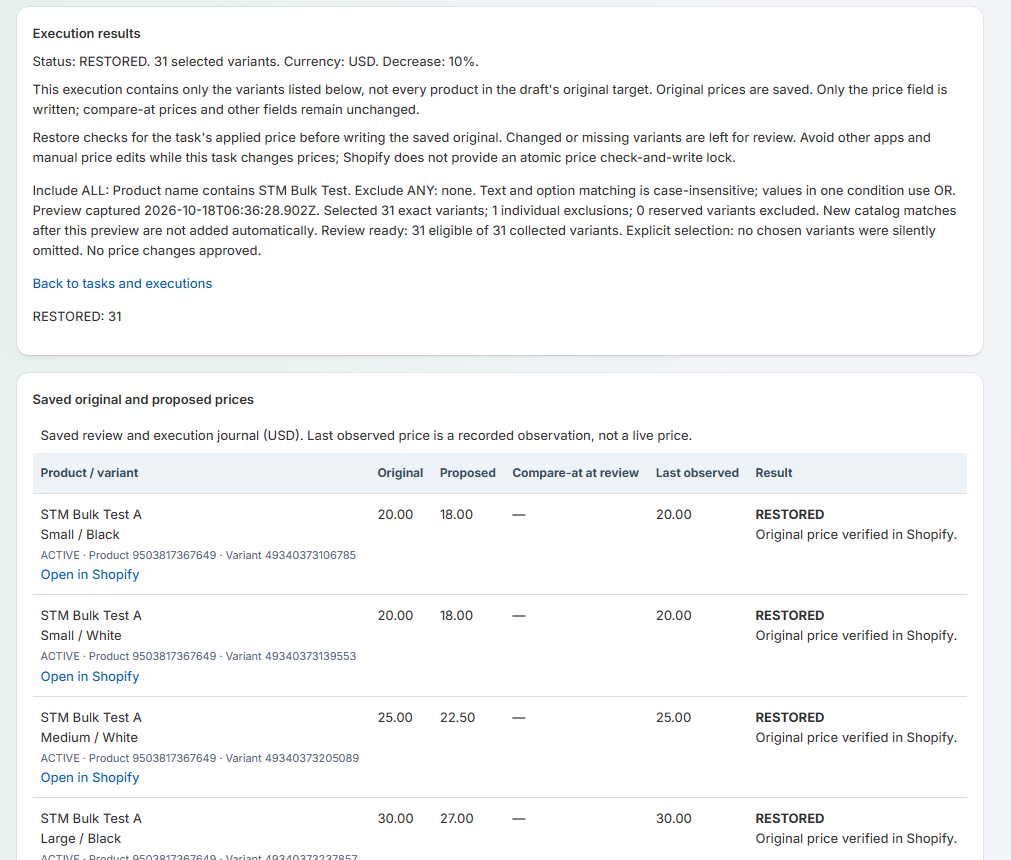
Restoration checks that each current price still matches this execution's applied price. A changed or missing variant is left for review instead of being overwritten with an older value. For example, if the app applied 90.00 and another app later changed it to 95.00, do not expect automatic restoration to overwrite 95.00 with the saved 100.00.
A successful RESTORED result confirms the restored originals were verified. The screenshot shows a recorded last-observed price equal to the original. Mixed outcomes require reading individual results rather than relying on one row.
Close without restoring
Close execution without restoring is an explicit recovery decision that keeps current Shopify prices and ends further recovery through that execution. It is not a restore button. Read its confirmation before using it, especially if prices are still discounted.
Chapter 10
Schedule a sale and optional restoration
Approve exact saved prices in the correct time zone.
Scheduling starts from an unstarted saved review, not directly from an editable draft. Read the saved variant count and prices first.
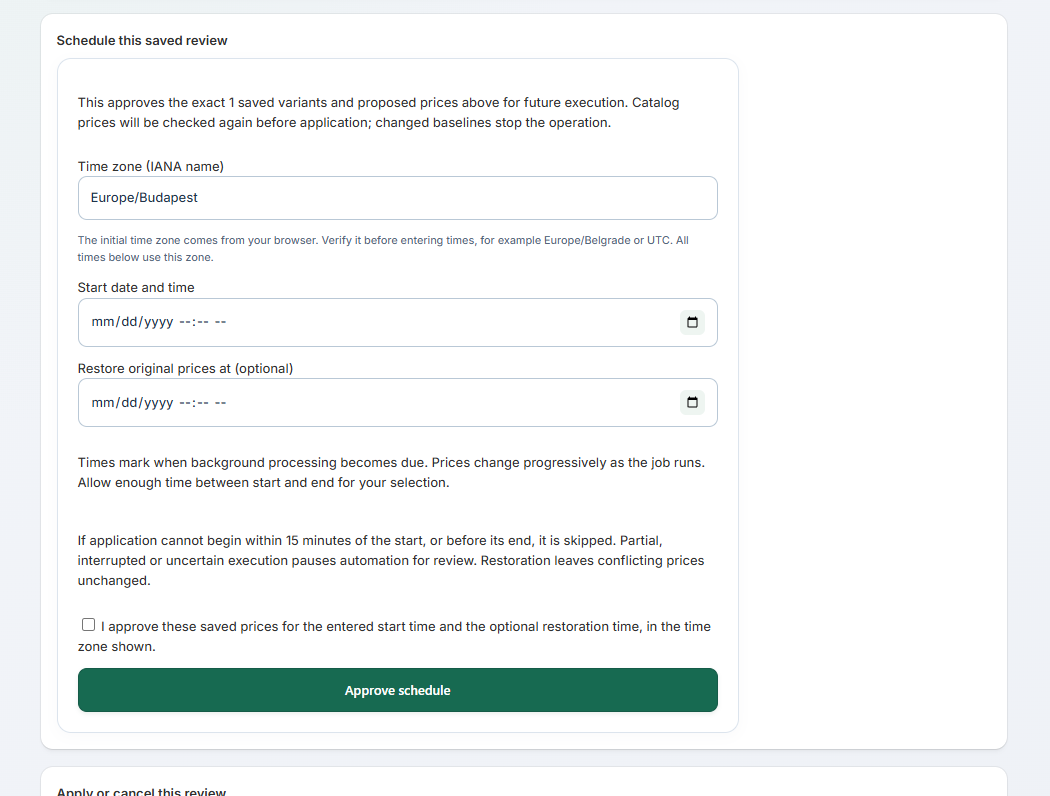
- Open Schedule this saved review.
- Verify the time zone, using a valid IANA name such as Europe/Budapest or Europe/Belgrade. It initially comes from your browser.
- Enter a future start date and time.
- Optionally enter Restore original prices at, later than the start.
- Allow enough time for the selected number of variants to process.
- Tick the schedule approval confirmation and choose Approve schedule.
Saving an approved schedule authorizes future application of the exact saved prices. It does not change them immediately. A blank restoration time means no automatic restoration was requested.
Follow the schedule
PENDING waits for the start. START QUEUED waits for background application. ACTIVE indicates successful application with a future restoration still due. END QUEUED waits for restoration. COMPLETED describes a finished schedule; read its message to see whether it included restoration.
The configured start is when processing becomes due. Prices change progressively as the job runs. The server must be available. If application cannot begin within its approved start window, currently up to 15 minutes or the scheduled end if earlier, the start is missed rather than silently running much later. Interrupted or partial results can pause automation for review.
Cancel or edit
Future unstarted schedules can be edited when their state permits. Cancelling future automation leaves current Shopify prices unchanged. It does not cancel a completed application or restore prices. A running operation may need to finish before cancellation is available.
Chapter 11
Design an optional banner or popup
Create a message without confusing display with pricing.
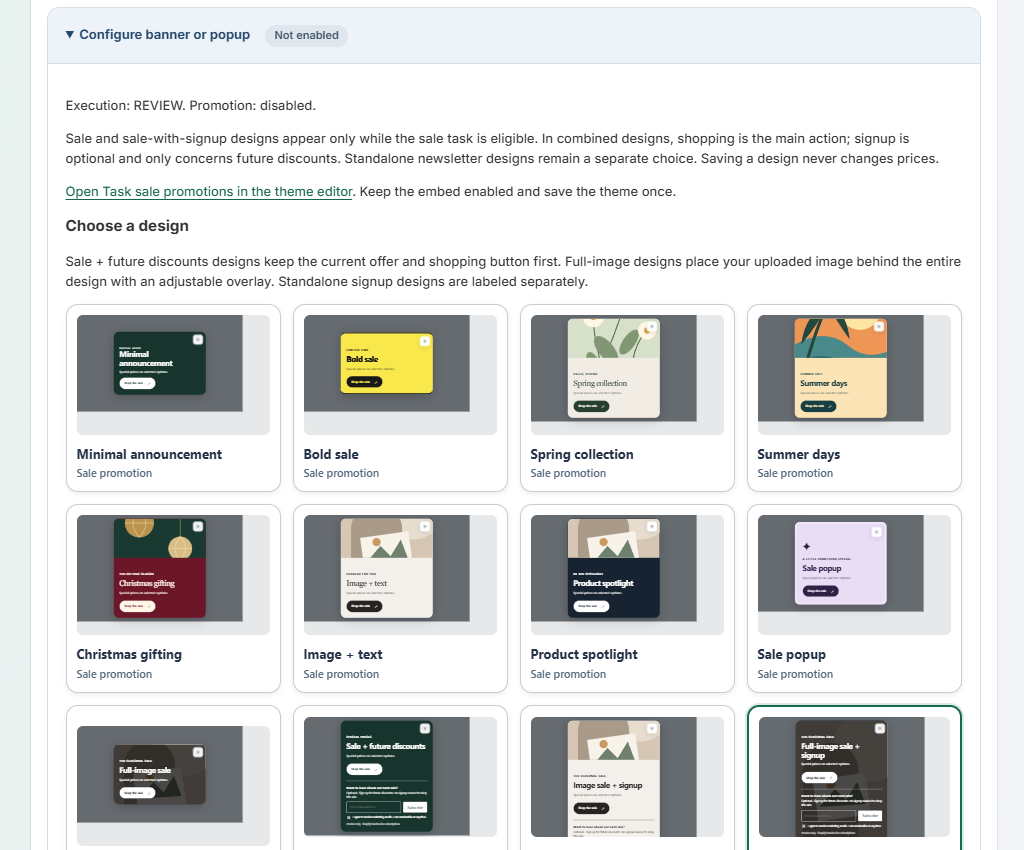
A promotion is optional. Open the saved price review and expand Configure banner or popup. The collapsed status tells you whether its promotion is enabled.
Choose a design
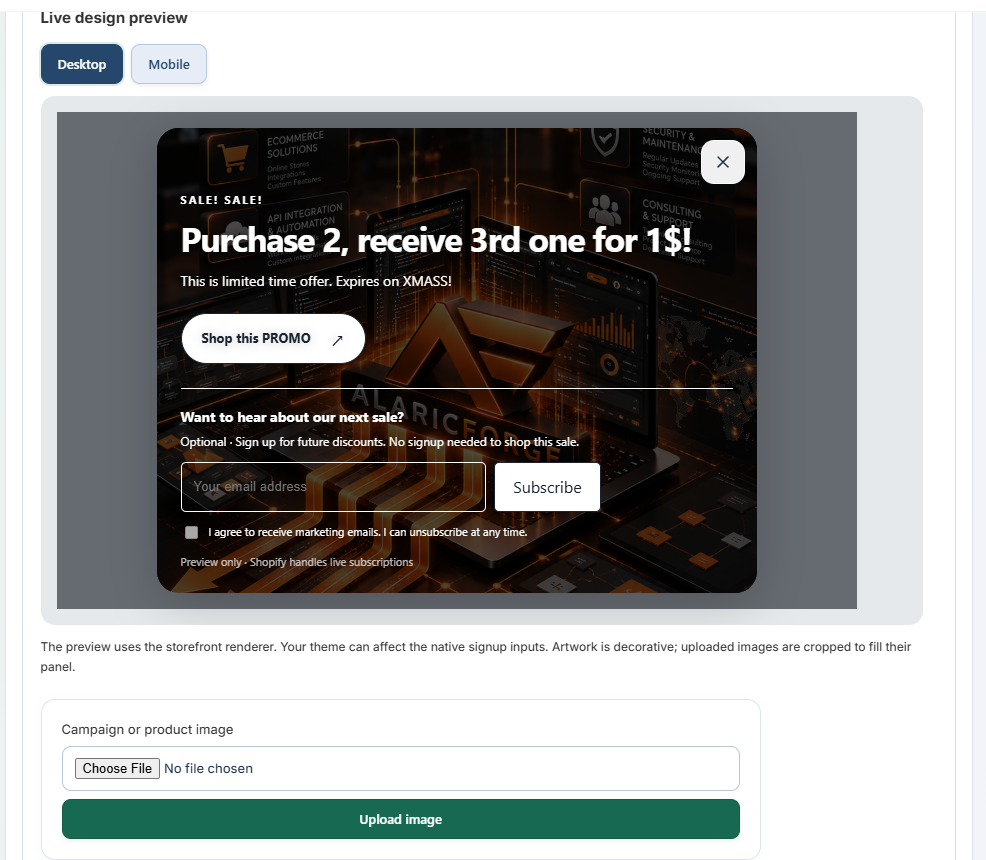
Pick a template from the visual cards. Available designs include minimal and bold sale styles, seasonal designs, image-and-text layouts, full-image backgrounds, and sale designs with an optional future-discounts signup.
The message, button, colours and image are your design content. A sale-and-signup design promotes the current offer first; signup is optional and concerns future offers. Standalone newsletter templates are a separate choice.
Adjust the content and appearance
- Enter the eyebrow, heading and body. For an optional shopping button, enter text such as Shop the sale (up to 40 characters) and a storefront path such as /products/stm-video-a or /collections/sale. Copy only the path after your store domain, starting with /. Do not enter a full URL, Shopify admin URL or temporary preview link. Enter both fields, or leave both empty for no button.
- Choose a background/foreground colour or upload PNG, JPEG or WebP artwork up to 5 MB. Full-image designs use the uploaded image behind the composition.
- Choose the overlay style, colour and opacity where supported to keep text readable.
- Set text alignment together or separately for the supported text groups.
- Set the offered typography controls: font choice, colour, size, weight and style. Theme fonts depend on the storefront's available fonts; this tool does not install arbitrary external font libraries.
- Use bottom-left, bottom-right or popup placement for desktop, and inspect the mobile popup preview.
- Set desktop width in pixels and mobile width as a percentage, within the form's permitted range.
Switch Desktop and Mobile in Live design preview. Uploaded artwork is cropped to fit its panel, so inspect the actual visible area on each view. Preview signup inputs are not a live subscription form.
Approval and activation
Save the design settings and explicitly approve the promotion when you want it enabled. Sale/task-linked designs still require an eligible price execution and the selected page visibility. Saving a banner never applies prices. Only standalone newsletter designs support independent activation where offered.
Chapter 12
Show the promotion on the storefront
Enable the theme embed and check eligibility.
- In the promotion editor, follow Open Task sale promotions in the theme editor.
- Enable the app embed in the theme actually used for the storefront, then save the theme.
- Save and approve the promotion design in the app.
- For task-linked sale designs, make sure the relevant saved execution is fully applied and eligible.
- Visit an actual storefront page that matches the promotion visibility setting.
Selected-products visibility requires an eligible selected product page. All-pages visibility is broader and has an additional confirmation. A temporary Shopify products_preview link may not behave like a normal storefront product page; test the real storefront URL and the intended theme.
If the banner does not appear, check the embed, theme, saved approval, execution status and page visibility before applying another price task. Restoring a task-linked execution makes its sale promotion ineligible. Disabling the promotion does not itself restore prices.
Newsletter signup
The live form is Shopify's native customer signup form. A visitor chooses whether to consent to marketing. Successful submission or errors are handled through that Shopify form; the app's design preview cannot verify a live signup.
No signup is needed to shop the sale. The app does not run an email campaign or promise delivery of future messages. Manage subscribers and marketing in Shopify or your chosen email tools.
Chapter 13
Understand missing native combinations
Distinguish incomplete option sets from stock levels.
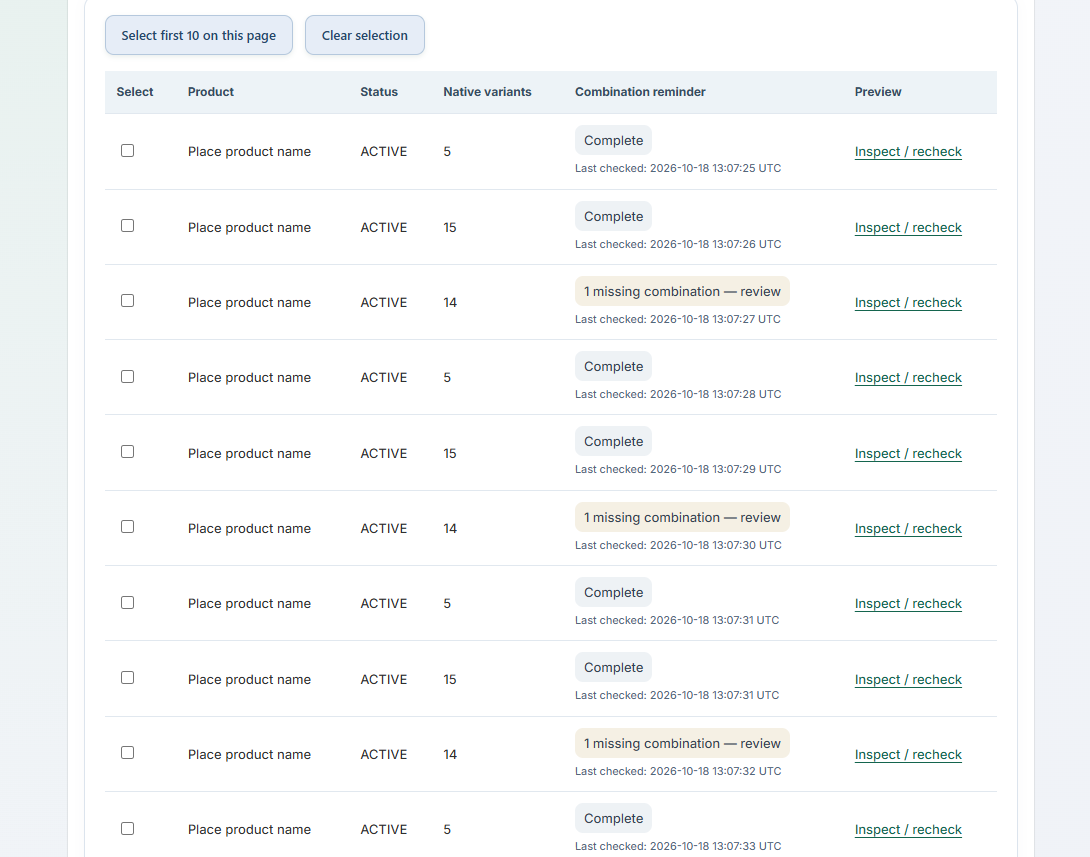
Open Find missing variants. The list shows product status, native variant count and a combination reminder. Visible products are checked automatically; incomplete or failed reads can still require Inspect / recheck. A last-checked timestamp is a recorded observation and can become stale after catalog edits.
Complete means no missing native combinations were found for the inspected option values. A reminder such as 1 missing combination — review opens the relevant inspection. Missing combinations can be deliberate; do not create them just to make a reminder disappear.
Example
If Size has Small and Large, and Colour has Black and White, four combinations are possible. If Large / White is absent, it is missing. If Large / White exists with zero stock, it is not missing.
- Choose Inspect / recheck for the product you want to understand.
- Compare native variants read, possible combinations, missing count and remaining product capacity.
- Read any unsupported-data or product-limit message before selecting rows.
- If needed, enter additional option values, one per line, and choose Preview combinations — no changes.
Proposed values are only previewed at this point. They are not saved to Shopify until an explicitly approved creation uses them. Entering Extra Large can add several possible combinations; select only the ones you actually intend to offer.
Chapter 14
Review and create missing variants
Set prices and settings before an irreversible creation.
Prepare an individual review
- Inspect the product and select the missing combinations you want.
- Under Save selected combinations for review, give the task a clear name.
- Enter Default price for selected rows. Enter a row Price override only where that combination needs a different price.
- Add optional SKUs. Blank SKU intentionally creates without a SKU.
- Review Charge tax and Requires physical shipping. Their initial Yes values are defaults, not a recommendation for every product.
- Save the selected combinations for review, then open the saved REVIEW record.
Every selected row needs a valid price in the store currency. Enter plain numbers without a currency symbol or thousands separator. A row price overrides the default. Non-empty SKUs must differ within a product review; the app does not check store-wide SKU uniqueness.
Approve creation
Inspect the exact saved combinations, prices, SKUs and settings. Read the explicit creation confirmation, then approve creation once. Product changes after review can block creation and require a fresh review. Do not change the same product in another app while creation runs.
Wait for verification and open the result in Shopify. CREATED means the requested variants were verified and Shopify-returned IDs recorded. A label such as Created — verification pending means the outcome needs further checking; it is not an instruction to create them again.
Configure the new variants afterward
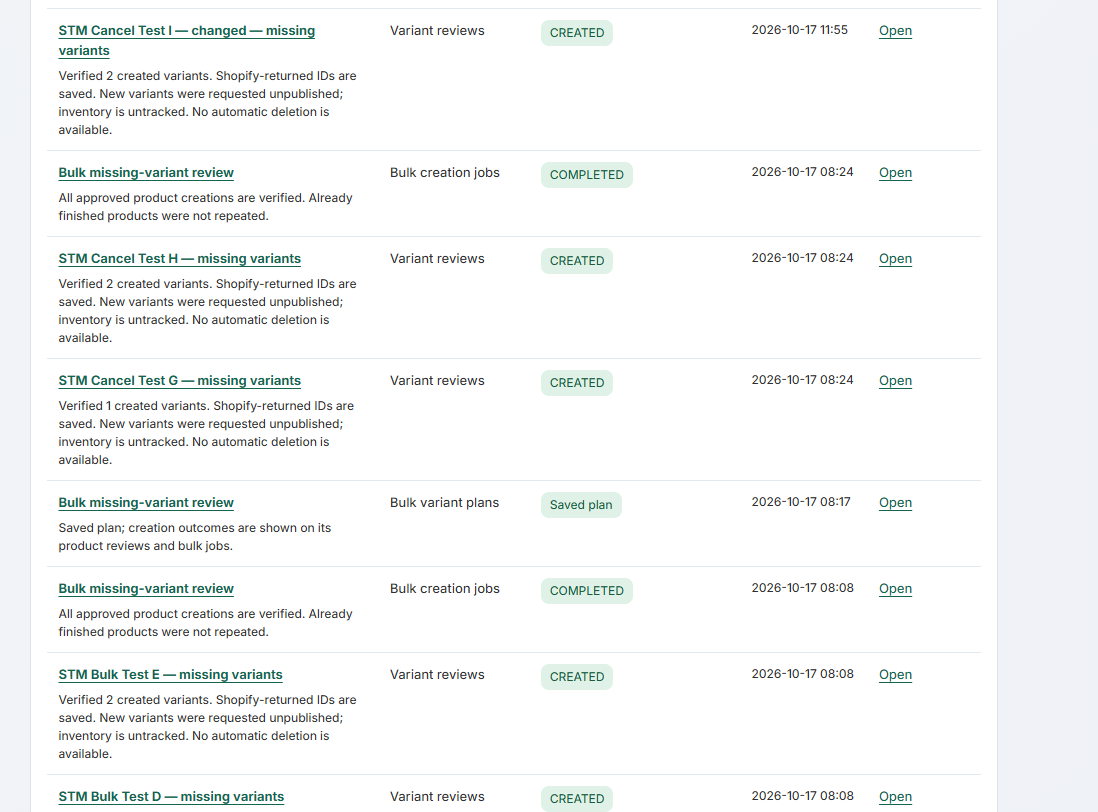
New variants are requested unpublished with inventory untracked. Check publication and stock separately in Shopify. Compare-at price, media, barcode, weight, cost and metafields are not copied automatically. Existing variants are retained.
Chapter 15
Create missing variants in bulk
One plan, separate exact product reviews, one bulk approval.
From the native product list, select the products you want to plan together. The app supports a bounded selection rather than every product in the shop at once. Open the bulk planning action, or return to an existing plan from Bulk plans.
Fill the plan
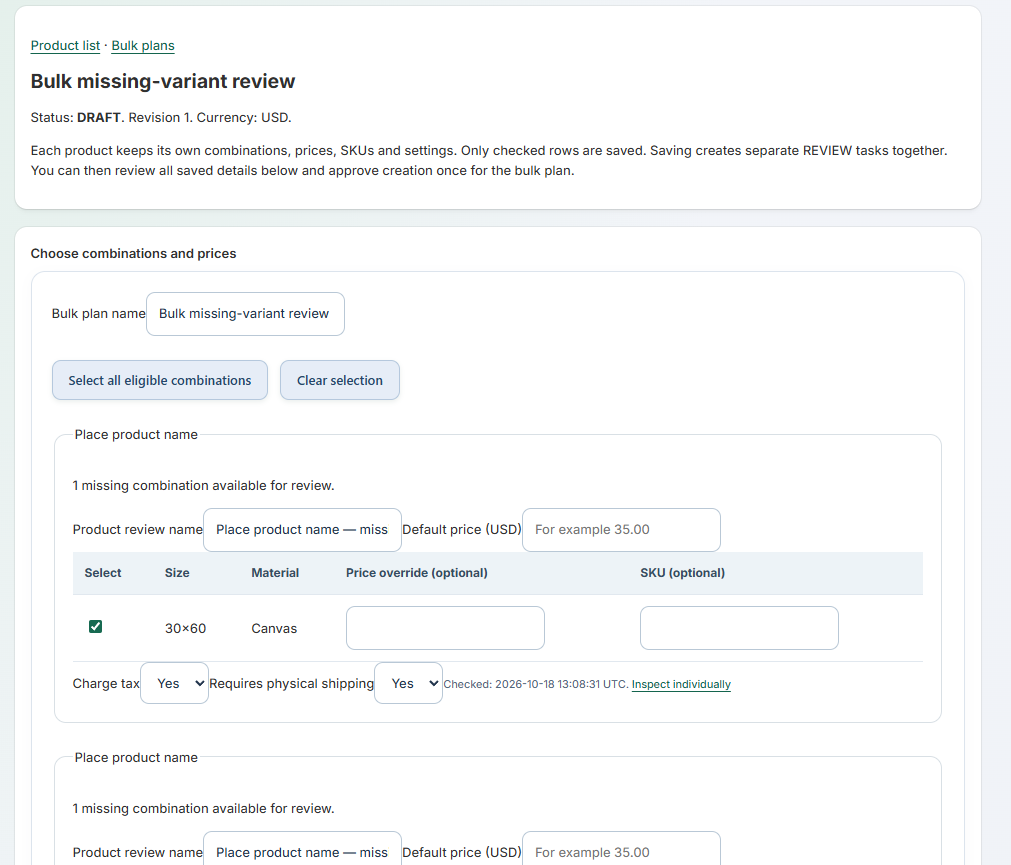
- Enter a Bulk plan name.
- For each eligible product, select only the combinations to create.
- Set that product's default price and any row overrides or SKUs.
- Review each product's tax and physical-shipping settings.
- Choose Save selected product reviews — no creation.
Only checked rows are saved. Each product keeps its own prices, SKUs, settings and combinations; a price entered for one product is not a global default for the plan. Complete, unsupported or unreadable products have no selectable rows. Current plan limits are 100 combinations per product and 250 across a plan; larger sets require a narrower or individual review.
Check the saved reviews and approve once
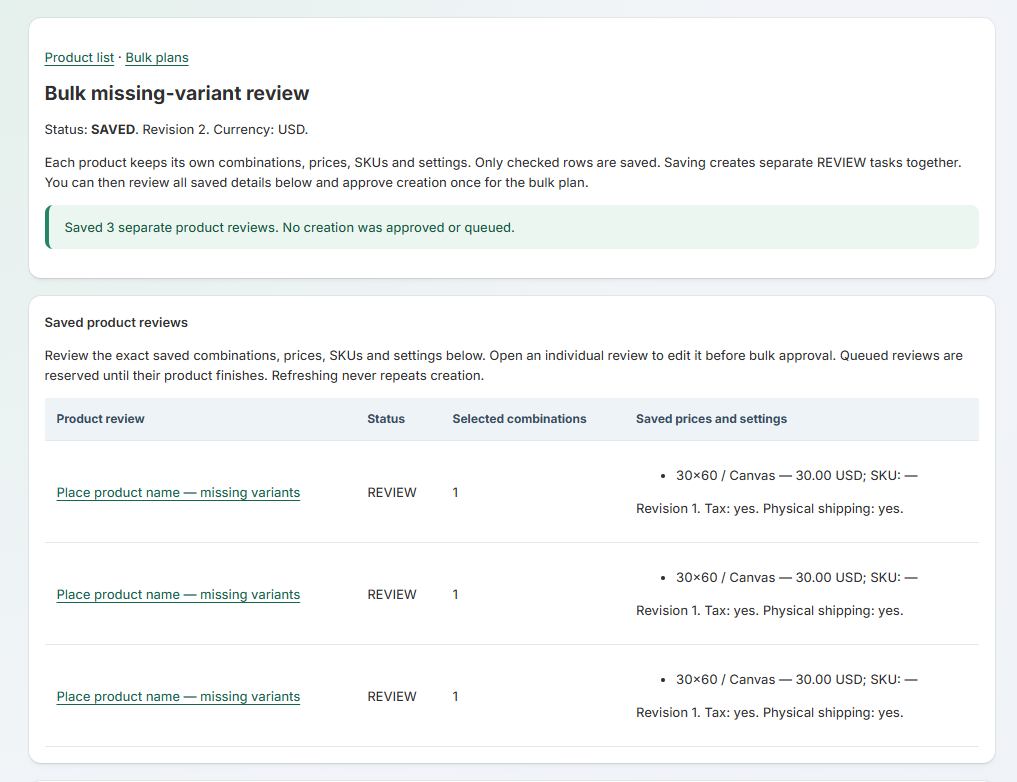
The SAVED plan links to separate product REVIEW records. Read every saved row in the summary. Open an individual product review if its details need editing before bulk approval.
The bulk approval shows the remaining eligible product and variant counts. Tick its explicit confirmation and choose Create approved variants for all remaining products. This is the bulk execution action; saving the plan alone did not queue creation.
Already-created, cancelled, blocked or archived reviews are not created again. A job records the approved product revisions and fresh validation runs per product. Results can be partial because Shopify writes occur per product, not as one all-products transaction.
Stop remaining products
Use Stop remaining products on a queued or running bulk creation job when you want to stop further products. The current product may finish. Existing created variants remain; stopping the queue does not undo creation.
Chapter 16
Read statuses and background results
Use the result message, not just a coloured badge.
A job can continue after you leave its page. Progress refreshes automatically while supported work is queued or running. Repeatedly submitting the same action is not a recovery strategy.
Common states
- DRAFT: an editable plan; no application or creation approval is implied.
- REVIEW: exact saved changes awaiting an explicit application, creation or scheduling decision.
- SAVED: a bulk plan has saved its separate product reviews; it has not necessarily queued creation.
- QUEUED: approved or requested work is waiting for the server worker.
- RUNNING: the worker is processing the job. Product-level writes may be progressive.
- APPLIED: the proposed price application was verified for that execution.
- RESTORED: eligible saved original prices were restored and verified; inspect the rows for the full outcome.
- CREATED: native variants were verified and their returned IDs saved.
- COMPLETED: this job or schedule finished; open its message to understand what it completed.
- BLOCKED: a required baseline or product condition changed, so the action did not proceed as reviewed.
- PARTIAL / NEEDS REVIEW / FAILED: read individual results. Some earlier writes can have completed even when a later step failed.
- CANCELLED: the relevant future operation was stopped. It does not mean previous writes were undone.
The task dashboard can show both a completed job and its execution record. They are linked records with different purposes, not duplicate catalog changes.
Chapter 17
Handle conflicts and interruptions
Recheck outcomes before retrying or approving new work.
Price baseline changed
If prices, compare-at values, status or target details changed after review, the app can stop the application. Reopen the current catalog, build a new preview and approve a fresh exact review only after understanding the change. The old proposal must not silently become approval of a new price.
An outcome is unverified
A timeout or lost response does not prove Shopify made no change. On a price execution, use Recheck results — read only. Follow the resulting message before restoring or closing. Original and proposed values remain available in the journal.
For native creation, use the results/recovery action on its saved review. Recorded IDs and inspected product data help establish what happened. Do not repeat creation because its first response was unclear. If manual inspection and explicit closure are required, closing the record preserves evidence and does not remove any variants.
Work stays queued
Check whether the server or its worker is paused. Closing the browser does not pause the worker, and repeatedly refreshing will not start a disabled worker. Contact support with the job ID and message rather than creating duplicate jobs.
A reserved variant cannot be selected
Open the holding execution. Cancelling its future schedule and cancelling its unstarted review are separate actions. Applied executions may need guarded restoration or an explicit close without restoring. Choose the action that matches your intent, not merely the action that frees a checkbox.
No matching rows
Review ALL/ANY logic, exact tags/options, the selected option name, draft tag target and product status. Rebuild after changes. The presence of Size Large and Colour Black somewhere on a product does not prove a Large / Black native variant exists.
After reinstall
Previous queued work, schedules and promotions remain stopped. Saved history, original prices, recorded variant IDs and recovery records can remain available for inspection. Do not assume reinstall automatically restores prices or deletes variants. Approve new work deliberately after reviewing retained records.
Chapter 18
Archive, duplicate and organize tasks
Keep the dashboard useful without confusing cleanup with undo.
Use Archive / history to find eligible finished records. Dashboard Visibility filters distinguish current and archived records. Archive is an organizational action; it does not restore prices, delete native variants or erase the execution evidence.
Restore an archived record to the current view when the UI permits. Only eligible states can be archived; unfinished recovery or active work should be resolved through its own workflow first.
Duplicate as draft copies supported task settings into a new editable draft. It does not copy execution approval, selected IDs, a schedule approval or an enabled promotion. A copied banner design requires its own approval. Build a new preview for the current catalog before applying the duplicate.
Use meaningful names such as Summer canvas — 10% — June, rather than several indistinguishable test tasks. Keep a separate test selection or test products for evaluating new workflows.
Chapter 19
Plans and trial
Choose a Shopify-hosted subscription and understand access after cancellation.
Store Task Manager offers USD 14.99 per 30 days or USD 99.99 per year, with a 14-day free trial for eligible subscriptions. Both choices include the same feature set. Shopify displays its actual charge and trial terms before you approve.
- Open Billing in the app navigation. Read the current verified subscription or setup message.
- Choose Choose or manage plan in Shopify. Shopify opens its hosted plan-selection page outside the app frame.
- Select monthly or annual billing, review the trial, renewal and charge details, and approve only if you agree.
- Return to the app and use Refresh subscription status if needed. A return URL or selected plan name alone never grants access.
Plan prices and trial terms are configured in the Partner Dashboard, not created by clicking a price card in this app. If billing setup or verification is unavailable, contact support@alaricforge.com. An internal test-store exemption is identified explicitly on the Billing page and needs no subscription.
Manage or cancel a plan
Use the Shopify-hosted plan-selection page to change plans. To stop renewal while keeping the app installed, open Cancel subscription renewal in Billing, read the timing, tick its confirmation and choose Confirm subscription cancellation. A trial subscription is cancelled immediately. A paid subscription is scheduled to end at its current billing-cycle end; no prorated credit is requested. If Shopify cannot verify the cancellation, refresh status before trying again. Do not change plans in another window during confirmation.
Without an active plan or trial, new planning and approvals are restricted. Saved history and results, cancelling unstarted reviews or future schedules, stopping remaining bulk work, disabling promotions, rechecking outcomes and restoring eligible original prices remain available while the app is installed. Already authorized price restoration does not require a current paid plan.
Subscription access is checked again when price application or native variant creation starts. Losing access does not silently rerun interrupted work when you subscribe again. Open affected results and approve fresh work deliberately. Storefront promotions hide when subscription access cannot be verified.
Subscription checks use Shopify data with a short cache, so background/display changes may take a short interval to reflect. Fresh approval checks bypass that cache. Read the current Shopify approval screen and verified subscription status for the terms that apply to your store.
Chapter 20
Get help and prepare a useful report
Contact AlaricForge without exposing authentication secrets.
Contact support@alaricforge.com for help with Store Task Manager.
Include these details
- The task name and the relevant task, execution or job ID.
- The status and exact visible message.
- What you expected to happen and what actually happened.
- The steps taken just before the issue, including whether Apply, Schedule or Create was approved.
- A readable screenshot of the relevant app result, with private information excluded.
If prices are involved, explain whether an external app or manual edit may have changed the same product during execution. If a schedule is involved, include its time zone and displayed start/restoration times.
About this manual
This guide documents the implemented catalog tools through the welcome/help update, with selective scan and image-cleanup updates included. Screenshots were supplied from the test app on 18 October 2026. Later interface changes can move controls or add options; the visible confirmation and saved review remain the source of truth for the action you approve.
This manual does not replace tax, stock, marketing-consent or Shopify catalog decisions that belong to the merchant.